Telangana Driving Licence Download Online: Get Soft Copy
You can download your Telangana driving licence online and get a soft copy in a few minutes, without visiting an RTO. Open the Sarathi portal or the DigiLocker app, verify your identity with your driving licence number and date of birth or with your registered mobile number, and download the digital licence. This guide explains both routes, how to print the soft copy, and how to check that it is valid.
What a Telangana Driving Licence Soft Copy Is
A soft copy of your driving licence is the digital version of the same licence, issued by the transport department and stored on an official portal. It carries the same details as the plastic card: your name, photograph, date of birth, licence number, the vehicle classes you can drive, the issue date, and the validity dates. A soft copy downloaded from the Sarathi portal or from DigiLocker is an official record, and it is useful when the physical card is lost, damaged, or still in transit after a renewal.
The soft copy is not a replacement you print at home and treat as a new card. It is a digital record you can show on your phone, keep as a PDF, and print for your file. Traffic police and RTO officers can verify the details from the licence number, and the DigiLocker version is issued directly from the government database, so it carries the same authority as the record behind the card. Keep the soft copy as a backup even after the plastic card arrives, because a phone copy is easier to retrieve than a replacement card if the original is lost.
Many Telangana drivers need a soft copy in a hurry. You may have lost your card before a journey, you may need to submit a licence copy for a job or a rental, or you may simply want a backup before you travel. The download routes below cover all of these cases, and they work for licences issued in Hyderabad, Warangal, Karimnagar, Nizamabad, and every other Telangana RTO. For a related check on your vehicle papers, see our guide on Telangana vehicle status check.
How to Download a Telangana Driving Licence From Sarathi
The Sarathi portal is the first route, and it works when you know your driving licence number. Keep the licence number and your date of birth ready before you start.
- Open the Sarathi portal and select Telangana as your state.
- Look for the option called Driving Licence, then choose the download or print driving licence option.
- Enter your driving licence number exactly as printed on your card, including the state code and series.
- Enter your date of birth in the format the portal asks for.
- Complete the captcha and submit the details.
- The portal shows your licence details. Check the name, photograph, vehicle class, and validity dates.
- Click the download or print option to save the soft copy as a PDF.
- Save the PDF on your phone and your computer, and take a printout for your vehicle file.
If the portal asks for an OTP, it will be sent to the mobile number linked to your licence record. Enter the OTP on the portal to complete the verification, and never share that OTP with anyone else. If the mobile number linked to your licence is an old number you no longer use, update it at the RTO first, because the OTP route will not work until the record is corrected.
How to Download a Telangana Driving Licence From DigiLocker
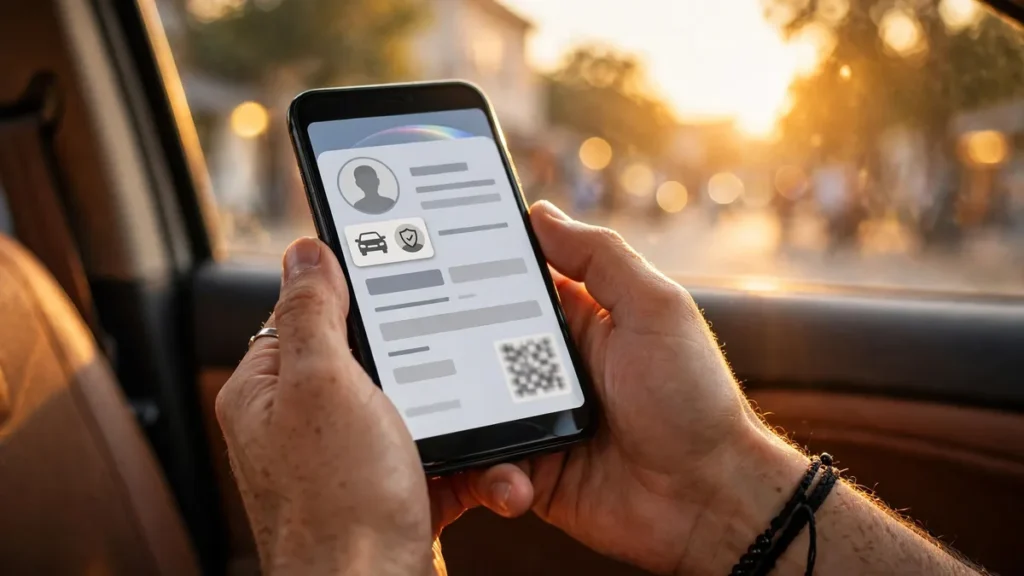
DigiLocker is the second route, and it is often the easier one, because the licence is pulled directly from the transport database into your DigiLocker account. You need a DigiLocker account linked to your Aadhaar and your mobile number.
- Install the DigiLocker app on your phone, or open the DigiLocker website, and sign in with your mobile number and OTP.
- Open the Issued Documents section and search for Driving Licence, or open the transport department section.
- Select the driving licence document and enter your driving licence number and date of birth if asked.
- DigiLocker fetches the licence from the official database and adds it to your Issued Documents.
- Open the licence in DigiLocker to view the digital driving licence with your photo and validity dates.
- Use the download or share option in the app to save a copy, or show the DigiLocker version directly when asked.
A DigiLocker driving licence is accepted as a valid digital document in India, because DigiLocker is a government platform and the document is issued from the official database. Keep the DigiLocker app signed in on your phone, and keep a PDF copy saved separately as well, so you can still show the licence if the app is slow to open or you have no mobile signal. The Parivahan portal also links to licence services, and the Vahan portal covers vehicle records, so the two portals together cover most licence and vehicle needs.
Download by Mobile Number
Many drivers search for a download by mobile number, because they remember their phone number more easily than a long licence number. The download itself still needs the licence number in most cases, but the mobile number plays a key role in verification.
- The OTP for the Sarathi download is sent to the mobile number linked to your licence, so keep that number active.
- DigiLocker sign in uses your mobile number and OTP, and the licence is then fetched with the licence number.
- If you have forgotten your licence number, you can use the licence search on the Sarathi portal with your name, date of birth, and other details to find it, then use that number for the download.
- If your mobile number has changed, update it in the licence record at the RTO before you try the OTP route, or use the DigiLocker route with your current Aadhaar linked number.
Do not trust a website or an app that promises a licence download using only a mobile number and asks for a payment or a password. Official downloads are free on the Sarathi portal and on DigiLocker, and no official portal asks you to pay a third party to fetch your own licence. If a site asks for money for a simple download, close it and use the official routes above.
How to Print the Soft Copy Correctly
A printed soft copy is useful for your file, for a job application, or for a vehicle rental, but print it well so every detail is readable.
| Step | What to do | Why it matters |
|---|---|---|
| Save the PDF | Download the PDF from Sarathi or DigiLocker | The PDF keeps the layout and photo clear |
| Check the details | Read the name, licence number, and validity dates | A wrong detail on the printout causes confusion |
| Print in colour | Use a colour printer where possible | The photograph must be recognisable |
| Use A4 paper | Print on clean A4 paper, not a torn sheet | A clean printout looks official and is easy to file |
| Keep the original safe | Store the PDF on your phone and computer | You can reprint it any time without a fresh download |
A printed soft copy is a copy for your records and for showing details. It does not replace the need to carry the original card where the law requires it, and an officer can still ask to verify the licence number on the portal. The printout is most useful as a backup and as a document for applications, while the DigiLocker version on your phone is the most convenient form to show during a routine check.
Checking the Validity of Your Downloaded Licence
After you download the soft copy, check the validity dates before you rely on it. A licence that has expired will show the old validity dates, and downloading it does not renew it. If the validity has ended, apply for a renewal on the Sarathi portal and track it with our guide on Telangana vehicle status check for vehicle records and the renewal status service for licence records.
| Detail to check | Where it appears | What it tells you |
|---|---|---|
| Licence number | Top of the licence | Confirms this is your licence |
| Name and photograph | Front of the licence | Confirms the identity matches you |
| Vehicle class | Licence details section | Shows which vehicles you can drive |
| Issue date | Licence details section | Shows when the licence was issued |
| Validity date | Licence details section | Shows until when you can drive legally |
| RTO name | Licence details section | Shows which Telangana RTO issued it |
If any detail on the downloaded licence is wrong, such as a misspelt name or a wrong date of birth, do not simply print it and use it. Ask the RTO that issued the licence to correct the record, and download a fresh copy after the correction. A wrong detail on a licence can cause problems during a traffic check, a rental, or a job verification, and it is easier to fix at the RTO than to explain later.
Common Download Problems and Fixes
- Licence not found.: Check the licence number digit by digit, confirm you selected Telangana, and confirm the date of birth matches the licence record. A licence issued in another state will not appear under Telangana.
- OTP not received.: Check that the mobile number linked to your licence is the one you currently use. Wait a few minutes, check your signal, and request the OTP again. If it still does not arrive, update the mobile number at the RTO.
- DigiLocker does not fetch the licence.: Confirm your Aadhaar details match the licence record, check the licence number, and try again later. A mismatch in name spelling is a common cause.
- Downloaded copy shows old details.: The portal shows the record as it stands today. If you recently renewed or corrected the licence, wait for the update to reflect, then download again.
- PDF will not open.: Download the file again, try a different browser or PDF reader, and check that the download completed fully before you open it.
- Licence shows as expired.: Downloading does not renew a licence. Apply for renewal on the Sarathi portal and download a fresh copy after the renewal is approved.
If the Sarathi portal is slow, try again later in the day rather than paying a third party site to fetch the same document. The official portals are free for a licence download, and a site that charges for it is selling you something you can get yourself in a few minutes.
Tips to Keep Your Licence Safe
Save the soft copy in two places, on your phone and on your computer or cloud storage, so a lost phone does not mean a lost licence. Keep a printed copy in your vehicle file at home, and keep the DigiLocker version ready on your phone for daily use. Never share a photo of your licence on social media or with a stranger, because the licence number and date of birth can be misused for identity fraud.
Update your mobile number and address in the licence record whenever they change, so OTP verification and postal delivery work when you need them. Check the validity date once a year and set a reminder a month before expiry, so a renewal is never left to the last day. A Telangana driving licence download takes only a few minutes, and a safe backup copy means a lost card is an inconvenience, not a crisis.
How can I download my Telangana driving licence online?
Open the Sarathi portal, select Telangana, open the driving licence download option, enter your licence number and date of birth, verify with OTP if asked, and save the soft copy as a PDF.
Can I download my Telangana DL from DigiLocker?
Yes. Sign in to DigiLocker, open Issued Documents, search for driving licence, enter your licence number if asked, and DigiLocker fetches the licence from the official database into your account.
Can I download my driving licence by mobile number only?
The download needs your licence number, but verification uses the mobile number linked to your licence. If you forgot the licence number, use the licence search on the Sarathi portal to find it first.
Is a DigiLocker driving licence valid?
Yes. A DigiLocker driving licence is issued from the official government database and is accepted as a valid digital document. Keep a PDF copy saved as well, in case the app is slow to open.
What should I do if my downloaded licence shows wrong details?
Do not use the wrong copy. Visit the RTO that issued the licence with proof of the correct details, ask for a correction, and download a fresh copy after the record is updated.
Does downloading a licence renew it?
No. Downloading only gives you a copy of the current record. If the licence has expired, you must apply for a renewal separately, and then download the renewed licence after approval.
DigiLocker is the second route, and it is often the easier one, because the licence is pulled directly from the transport database into your DigiLocker account. You need a DigiLocker account linked to your Aadhaar and your mobile number.